
Atom Learning Design System
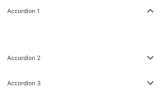
Accordion
An accordion vertically stacked group of interactive headings that reveal an associated section of content when clicked

Action icon
An accessible interactive wrapper around Icon to trigger an action behaving just like buttons.
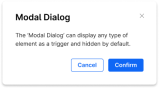
Alert dialog
A modal dialog that interrupts the user with important content and expects a response.

Avatar
An avatar is a component that offers a visual representation of a user or entity. It helps to quickly identify users or objects.

Badge
Badges are visual indicators for labels, useful to emphasize information to the user. Works best with single-word values.

Banner Regular
A container with a short message, a call-to-action, and an image, used to push the user towards an action.

Banner Slim
Slim variant. A container with a short message, a call-to-action, and an image, used to push the user towards an action.

Button
Buttons trigger an action such as submitting a form or showing/hiding an interface component.
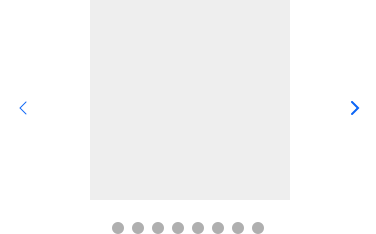
Carousel
The Carousel component displays a series of slides that can be swiped between or selected directly via buttons

Checkbox
A [primitive] toggle input for choosing from predefined options.

Checkbox field
A toggle input for choosing from predefined options.
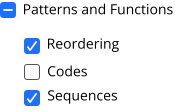
Checkbox group
Allows user to select multiple items from a list of options.
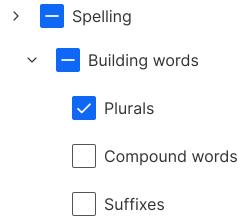
Checkbox tree
Input with a tree structure that allows multiple selections across various levels of a hierarchy.

Chip
A component in the shape of a pill providing visual cues to prompt users to enter information or filter content.

Chip dismissible group
A dismissible component in the shape of a pill providing visual cues to prompt users to enter information or filter content.

Chip toggle group
A selectable toggle component in the shape of a pill providing visual cues to prompt users to enter information or filter content.
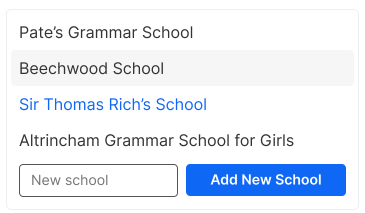
Combobox
Combobox combines a text input with a list of suggested values.
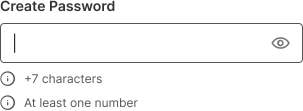
Create Password Input
An input that allows users to privately enter their password when creating new ones.
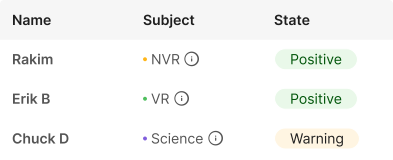
Datatable
Data Table provides complex features for tables, like sorting and pagination.
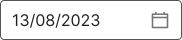
Date input
A [primitive] form component that provides a styled date selector.
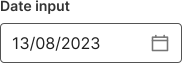
Date input field
A form component that provides a styled date selector.
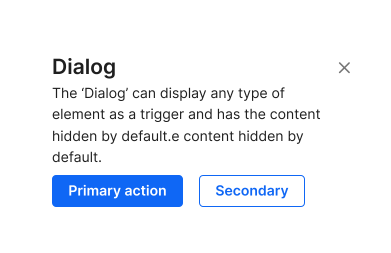
Dialog
The Dialog component renders its children inside a modal and puts a dimmer over the rest of the screen.

Dismissible
A primitive that works as a dismiss button which removes the element from the view.

Dismissible group
A set of dismissible elements (primitives) which remove the elements from the view.

Divider
Use Divider to render a horizontal or vertical line that will extend to the parent node's width/height.

Drawer
An structural panel that appears overlaid on top of a page when triggered by an element.

Dropdown menu
A menu in which options are hidden by default but can be shown by interacting with a button; it is not a form input.
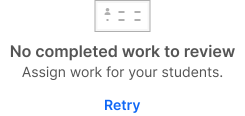
Empty state
Empty states are messages that provide an explanation of an interface in absence of content.

Field wrapper
A utility component to help with composing consistent form fields.

File input
An input that allows users to upload a file from their device.
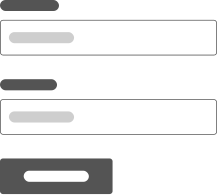
Form
A wrapper around HTML form element that abstracts form validation logic away from the view code.

Heading
Use Heading to define a semantically relevant title to a component, section, or page.

Icon
A standardized way to render icons, ensuring that only the icons you use are included in your output.

Image
An element for embedding images.

Inline message
An inline feedback message in the form of simple text that informs the user of relevant information, revealed in context.

Input
A [primitive] form control that accepts a single line of text and numbers.
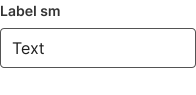
Input field
A form control that accepts a single line of text and numbers.

Label
A text label for form inputs.

Link
A link is a reference to a resource. This can be external or internal.

List
Lists are used for grouping a collection of related items. There are unordered and ordered lists.

Loader
A visual indicator that a process is happening in the background.

Markdown content
MarkdownContent will transform a Markdown string into Atom Learning design system components.
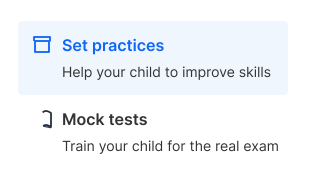
Navigation menu
NavigationMenu exports components that combine to form a container for navigation links.
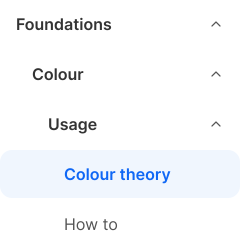
Navigation menu vertical
Navigation menu items meant to be used in sidedrawers and similar panels for vertical navigation.

Notification badge
A small label that wraps content and displays a numeric notification.

Number input
A [primitive] input control for editing a numeric/quantity value with increment and decrement buttons next to it.
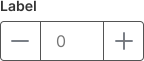
Number input field
An Input control for editing a numeric/quantity value with increment and decrement buttons next to it.

Pagination
A component used whenever a user needs to navigate through sets of data that are too long to fit on one page.
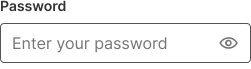
Password field
An input for passwords with visibility toggle functionality.

Password input
A [primitive] input for passwords with visibility toggle functionality.
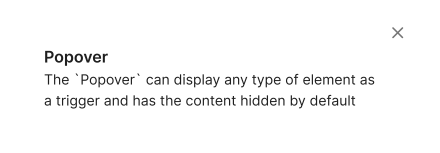
Popover
The Popover component displays floating informative and actionable content in relation to a target.

Progress bar
A horizontal bar indicating the current completion status of a task, updated as the task progresses.

Radio button
A [primitive] radio button that allow a user to select a single option from a list of predefined options.

Radio button field
Radio buttons allow a user to select a single option from a list of predefined options.

Radio card
A Radio Button that enables extra emphasis and descriptive capability.
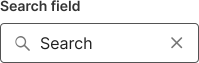
Search field
Search inputs allow users to find content by entering a search term.

Search input
A [primitive] search input that allow users to find content by entering a search term.
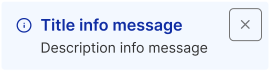
Section message
A contextual feedback message displayed to inform the user in a particular section of the page.

Select
A [primitive] form input used for selecting a value. It shows a list of predefined options for the user to choose from.
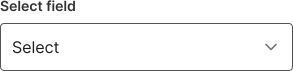
Select field
A form input used for selecting a value. It shows a list of predefined options for the user to choose from.
Select menu
A fully custom, Radix-based select component for app-like dropdown menus. Renders an in-page dropdown instead of the native OS picker.
Select menu field
A form-integrated select menu with label, validation, and error handling.
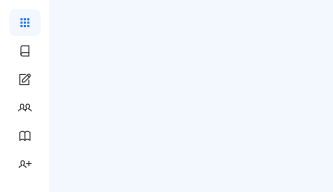
Side bar
A side panel to navigate the content of a product. Appears overlaid on top of a page and when triggered by the hamburguer menu.
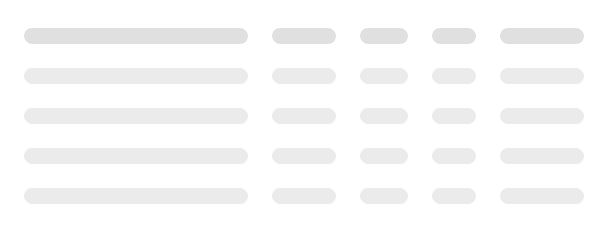
Skeleton loader
A group of components to build skeleton screens, displaying a preview of a page while content is loading.

Slider
A [primitive] form control for choosing a value within a preset range of values.
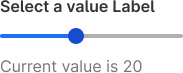
Slider field
A form control for choosing a value within a preset range of values.

Sortable
A primitive that let users sort an array of sibling elements via drag and drop.

Spacer
A flexible flex spacer that expands along the major axis of its containing flex layout.

Stack content
A layout component to provide internal spacing between content components.

Stepper
Component to indicate progress during more than one-step processes.

Switch
A control used to switch between two states: often on or off.
Table
Displays tabular data with features such as sorting and pagination.
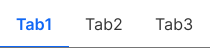
Tabs
Tabs are a component to navigate between different sections of content that are displayed one at a time.

Text
Text is our basic component for rendering text, use it for any non-heading text.
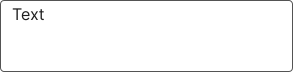
Text area
A [primitive] form control for choosing a value within a preset range of values.
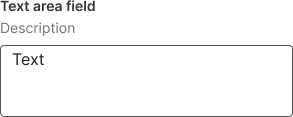
Textarea field
A form control for editing multi-line text.

Tile
Tile is a fundamental layout component used as a generic container to build the base of panels, cards, lists and other content components.

Tile interactive
An interactive layout component used as a generic container to build the base of panels, cards, lists and other content components.

Tile toggle group
A selectable toggle layout component used as a generic container to build the base of panels, cards, lists and other content components.

Toast
A floating alert which appears in a layer above other content providing immediate feedback. Disappear automatically or can be dismissed by the user.

Toggle group
A component that lets users toggle between a group of options. It can be used as single or multi-select.
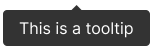
Tooltip
Tooltips display a description or extra information about an element, usually on hover, but can also be on click or tap.

Topbar
The topbar allows users to search, access menus, and navigate. By default it’s fixed at the top of the interface.
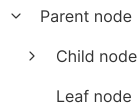
Tree
Represents data in a hierarchical or tree-like structure, where items are organized into parent and child nodes.

Video
Video component supports playing Vimeo hosted videos.