
Overview
Input component that handles nested options within a tree structure allowing multiple selections across various levels of a hierarchy, where items are organized into parent nodes and child nodes.
It combines the features of a Tree (hierarchical structure) with Checkbox group with checkboxes associated with each node in the tree.
Each checkbox allows users to select or deselect specific nodes or items within the hierarchy.
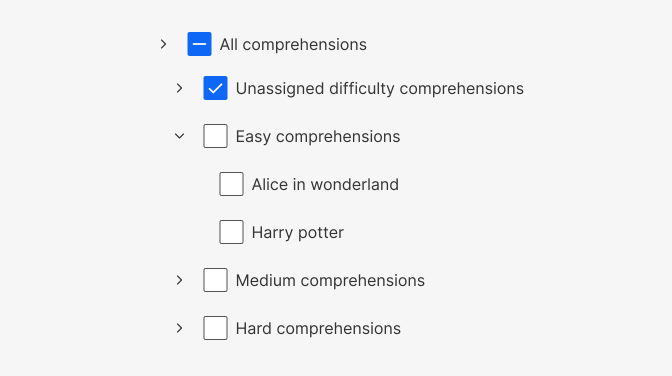
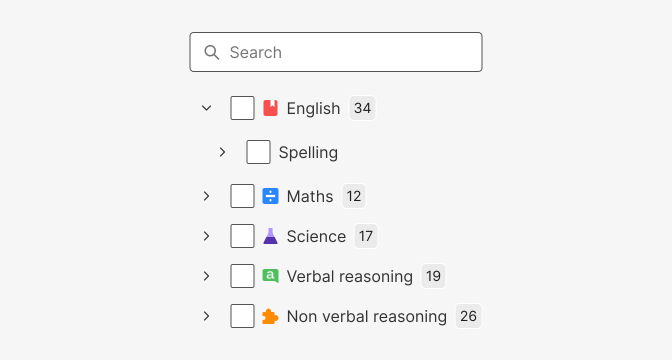
Checkbox trees can have the following elements:
- Search bar for searching items in the tree view.
- Checkboxes for selecting items in the tree view.
- Badges for showing the number of child nodes in the tree view.
- Icons for visually representing the node types in the tree view.
When to use
Checkbox Trees are commonly used when users need to perform actions on multiple items simultaneously.
Multi-Selection: Checkbox Trees are useful when users need to select multiple items from a hierarchical list. For example, selecting subjects, topics, subtopics and atoms.
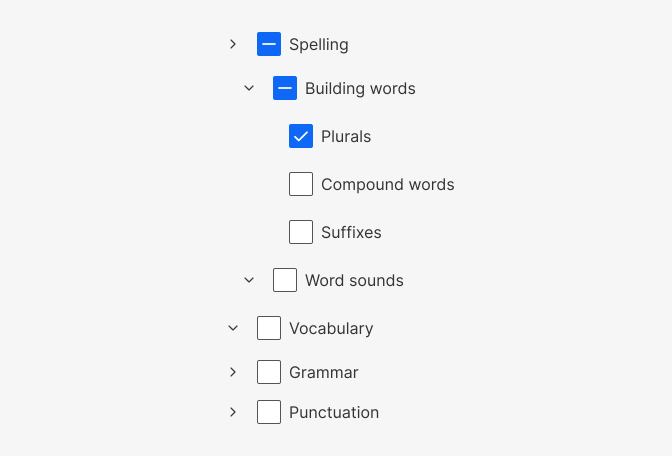
Filtering or Filtering by category: In scenarios where you have a hierarchical list of items, Checkbox Trees can allow users to filter items by category or attribute. Users can select checkboxes for various categories to narrow down their search results.
Behaviour

The Tree items offer the option to expand or collapse them, which can be achieved by either selecting the chevron icon or clicking on the text. However, when the items are designed to be selectable, clicking on the text active the selection status, and clicking on the chevron icon toggles the expansion state of the item.