
Overview
Sidebar is a layout component that appears as a vertical panel at the edge of the main content area and serves as a navigation or information hub.
Users can interact with it to access supplementary features, menus, or content without leaving the current page.
Navigation includes a list of links that users use to move between sections of the product.
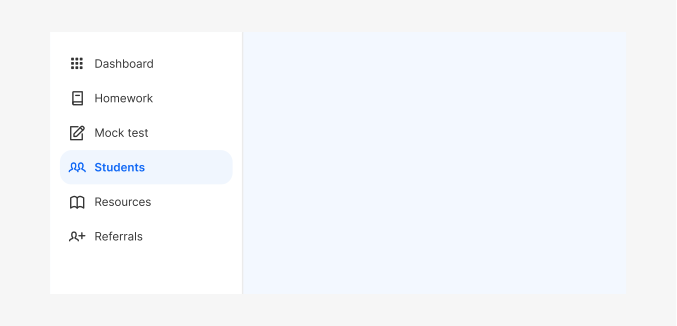
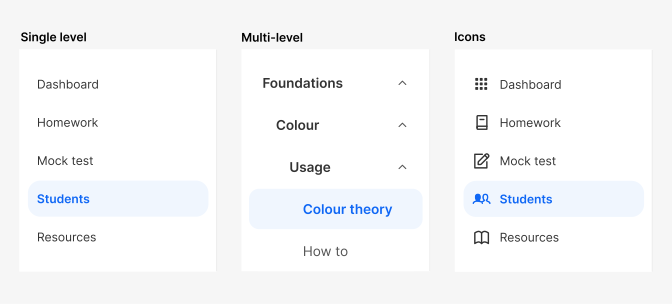
Sidebar navigation items are built with NavigationMenuVertical which provides option for single level navigation, multilevel navigation, and items with icons.
Single level
For straightforward navigation without any hierarchical structure, opt for a single-level side navigation. When a user selects a navigation item, it instantly activates and directs them to the corresponding location.
Multi-level
In situations where your navigation structure has multiple tiers of hierarchy, consider implementing a multi-level side navigation. Clicking on a section header either expands or collapses the underlying sub-navigation items.
Icons
Icons can be shown in single-level and multi-level side navigations. However, it's important to reserve icons for situations where they provide crucial context and are closely linked to the accompanying text. Avoid using icons purely for ornamental purposes.
Sidebar is customizable and has a mini variant that can be collapsed and expanded, providing a space-efficient way to enhance user experience and organize content in a visually appealing manner.
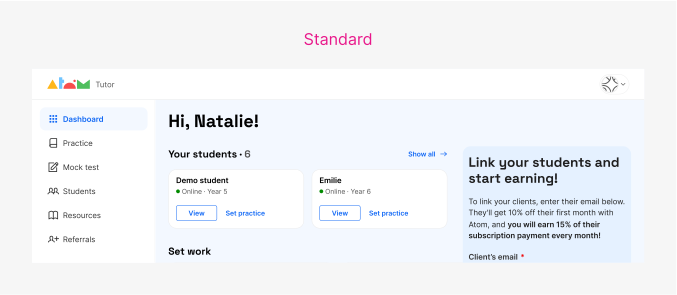
Standard drawer
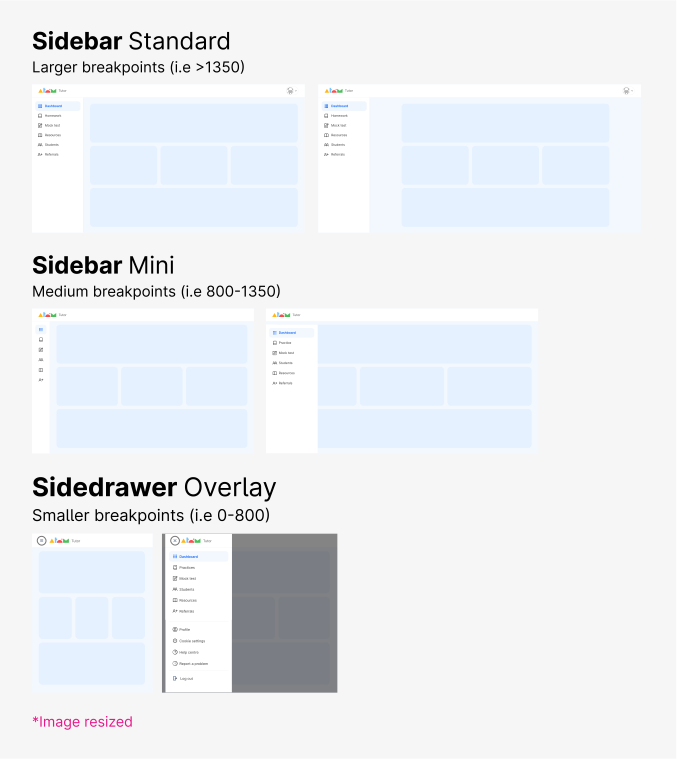
Standard navigation sidebars are pinned to the left edge, at the same elevation as the content or background.They can optionally toggle open or closed with a trigger and the state of the sidebar should be remembered from action to action and session to session.
When the sidebar is outside of the page grid and opens, the drawer forces other content to change size and adapt to the smaller viewport.
Standard navigation sidebar are the recommended default for desktop.
Mini sidebar
This variation is used for navigating the product when space is more limited but users still need the navigation to be quickly and easily accessible.
Its resting state is as a mini-sidebar, with only icons, at the same elevation as the content.
When expanded, the drawer changes its width and the extra content overlays the page.
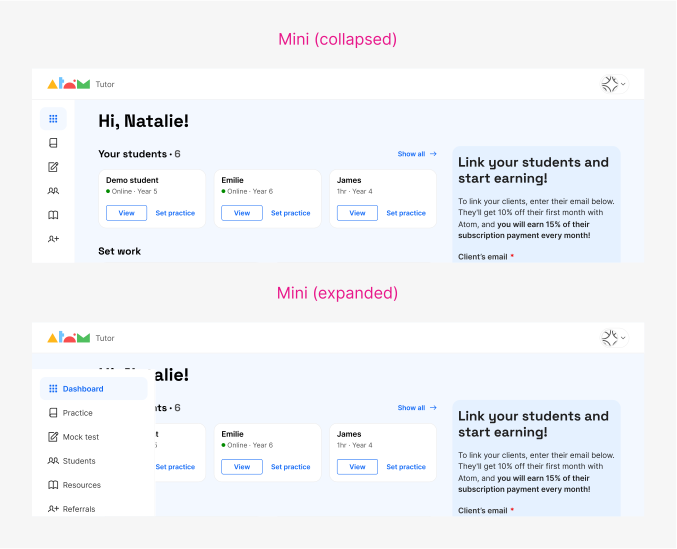
The Mini Sidenav is collapsed by default and when the user hovers with the mouse over the bar it expands overlaying the content on the page. On touch devices, when the user taps on the mini sidebar it will expand, and when taping again over a menu item it will then navigate. When the sidebar is expanded, tapping outside the sidebar will collapse it.
When to use
The navigation sidebar allow users to move around the product quickly and efficiently. It enables users to orient and navigate different sections of applications reliably.
Atom offers two navigation options: top and side. To choose what’s right for you, you might consider first the information architecture and sitemap of your product. Navigation sidebar is best suited when there are more than 3 menu items, for 3 or less is best to use a Topbar.
When a product has a substantial amount of content, sections, or features, a Navigation Sidebar can provide a hierarchical structure for users to easily access different areas.
In larger configurations, when there’s enough screen real state available, the navigation pane is always on-screen, usually on the left of the view. On medium screens, consider collapsing it into a Mini version and on smaller ones hide it behind a menu button.
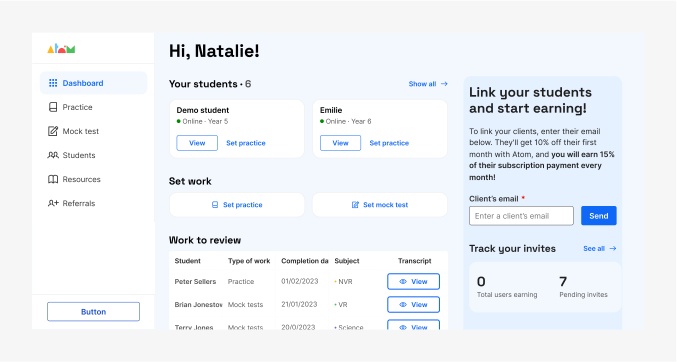
Sidebars include an optional Header and Footer and could also be used without a Topbar, although Topbars provide useful space for tools like notifications, global search, call to actions, user profile and settings, etc.
Do's and dont's
Do
Navigation must be clear and purposeful. Opt for descriptive titles that convey the intended destination, as vague or irrelevant titles can hinder usability.
Avoid
Avoid