
Overview
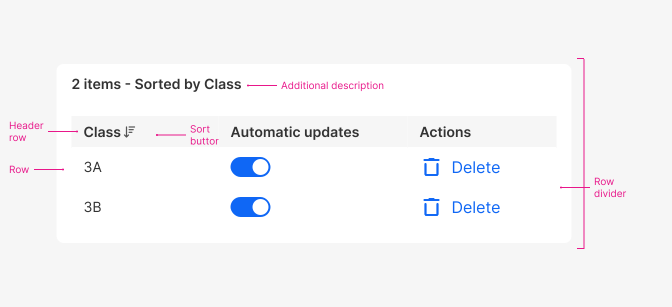
A data table is a graphical representation of data in a tabular format that is typically used to display large amounts of information in a condensed and organised manner.
When designing data table with users in mind, it's important to follow some key factors:
- Scannability - users should be able to quickly and easily scan the data table to find the information they are looking for. This can be accomplished by using clear and concise headings and labels, as well as alternating row colours or bold text to differentiate between rows.
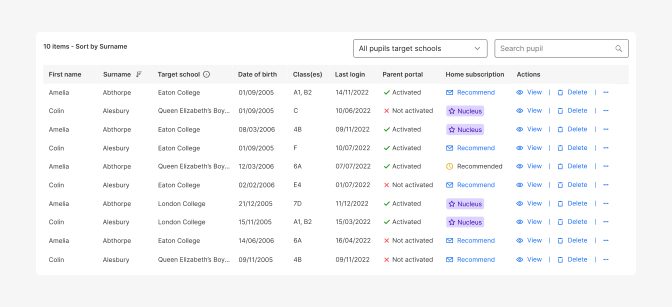
- Interactive - data table components should be interactive and allow users to sort, filter, and search the data to find the information they need.
- Contextual Information - users may need additional context to fully understand the data presented in the table. This can be accomplished by providing explanatory text or tooltips that provide additional information about the data being displayed.
- Responsive - data table components should be designed to work on a variety of devices and screen sizes.
When to use
Data tables are often used in applications that require users to sort, filter, search or view large data sets, such as financial applications, data analysis tools, and content management systems.
Data tables are a great way to present and organise data in a way that allows users to scan and look for patterns, as well as develop insights from the actual data.
Use data table component when you need to manipulate or view large amounts of data in a tabular format.
Sorting
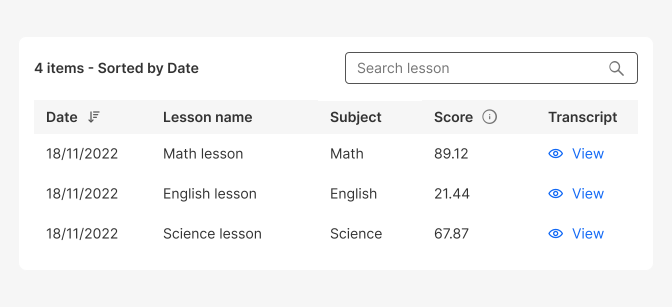
Sorting by default, with a possibility to sort each column
Bulk actions
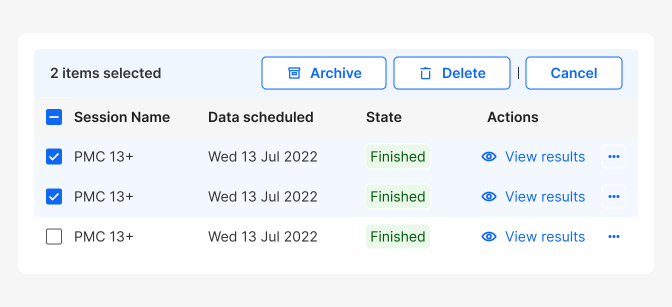
Multiple row selection + bulk actions
Bulk actions in a table refer to performing a single action on multiple items simultaneously, rather than individually performing the action on each item separately. It allows users to efficiently manage and manipulate large sets of data within a table or list.
Bulk actions can be used to modify, update, or delete multiple data entries at once. For example, in Atom Prime, this feature may allow the teacher to delete multiple old homework instead of deleting them individually.
To utilize bulk actions users can select multiple items by checking the checkboxes and then trigger the desired action from a toolbar that appears temporarily above the table while items are selected.
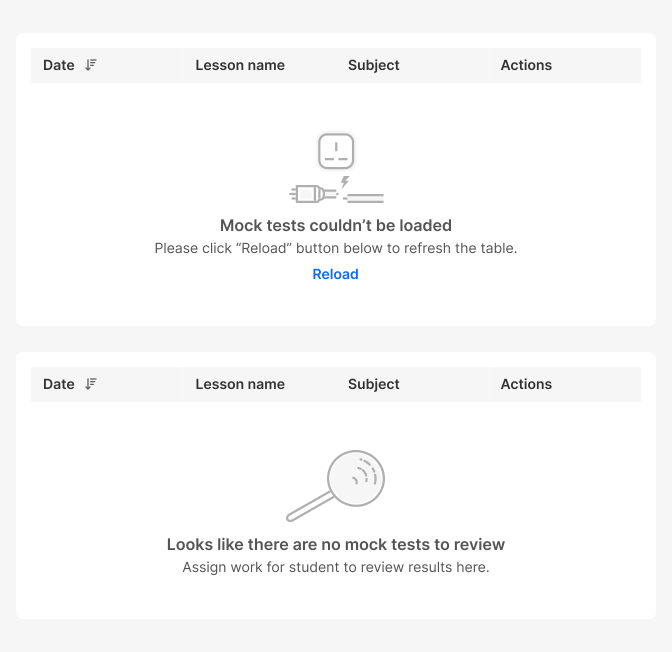
Empty states
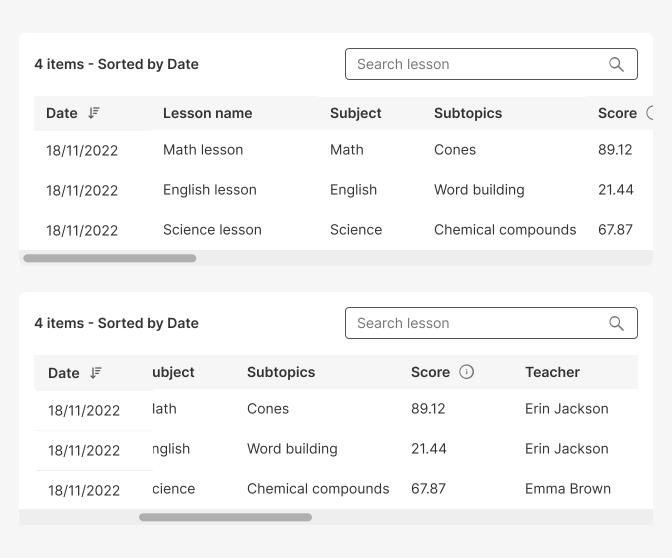
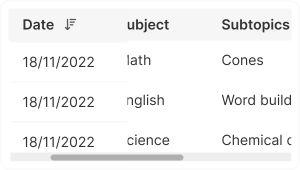
Horizontal scrolling
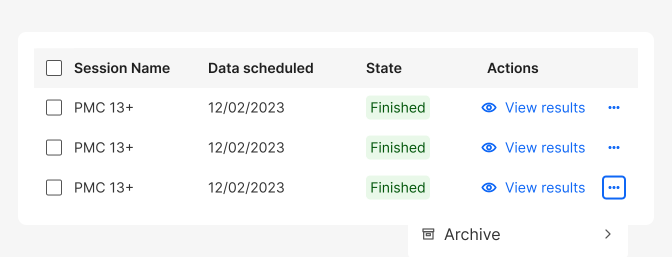
Overflow menu
Filtering
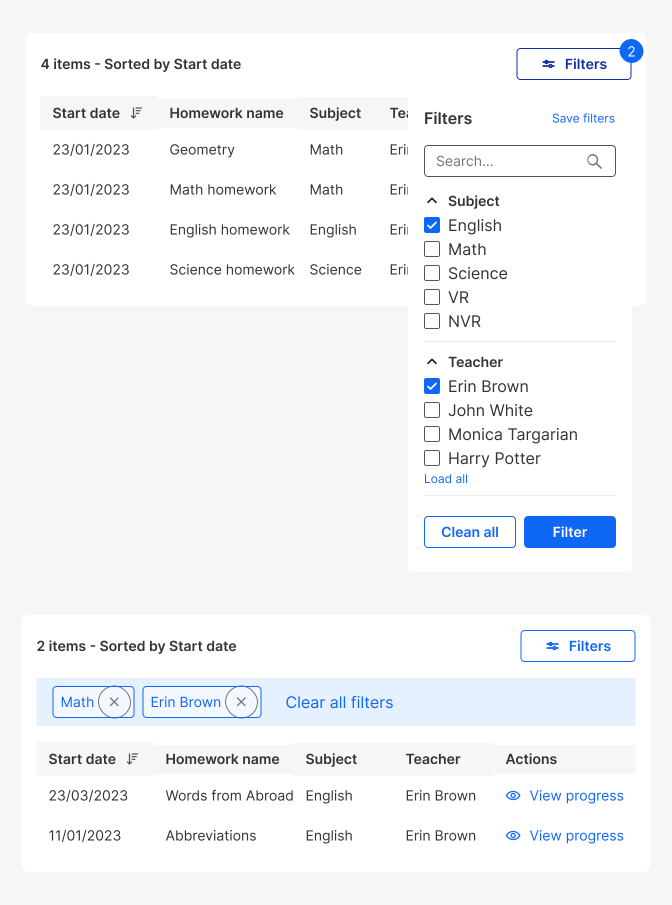
Filtering allows users to drill down on data and extract insights more efficiently. Users can filter by entering specific text in the search bar or selecting already defined keywords. For example, in Atom Prime, in Manage Student Table, the teacher can reduce the amount of data by filtering by class and get the desired results faster.
Pagination
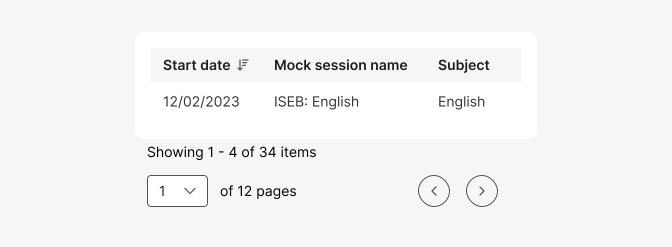
Do's and Don'ts
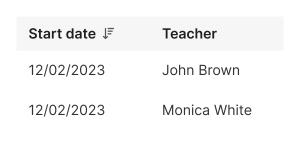
Do
always provide clear labels for table’s headings and content.
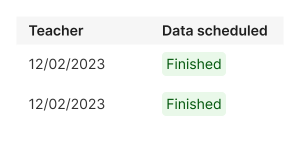
Don't
provide inappropriate labels, that don’t reflect the content.
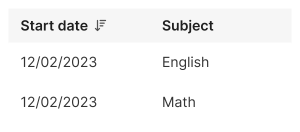
Do
align content top-left in each row’s cell (except for numeric values).
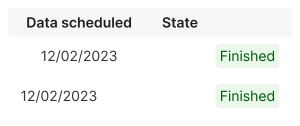
Don't
use different alignments inside a row cell.
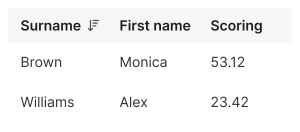
Do
prioritise the columns and sort the most important information starting from left to right.
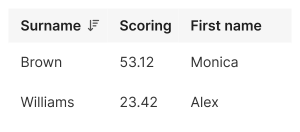
Avoid
placing columns in random order.
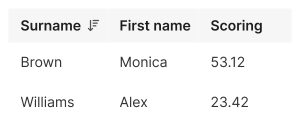
Do
use the same row size.
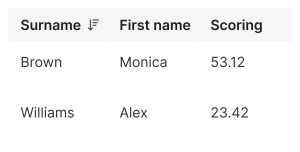
Don't
mix the row sizes.
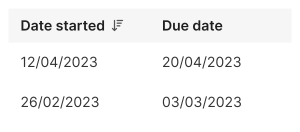
Do
use the same format of dates everywhere.
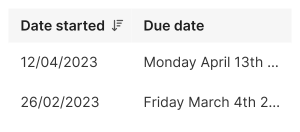
Do
mix format of dates.
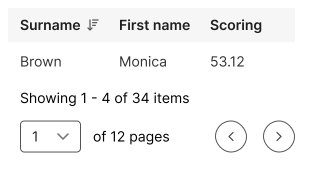
Do
use responsive pagination on smaller breakpoints.
Do
use the first fixed column for complex tables that require horizontal scrolling.