
Overview
A component that lets users toggle between a group of 2-6 options. It can be used as single or multi-select, and displayed vertically or horizontally.
Toggle Group is an alternative for Radios and Checkboxes. A set of two-state buttons that can be toggled on or off.
They clearly present all available options in the viewport at the same time, reducing cognitive load, and are easy to use on mobile devices. Therefore It's recommended to use it when there are 6 options or fewer available. For a larger amount of options, use radio, checkbox, combo box, or select.

For avatars representing the user, the user picture is displayed. If there is an error loading the src of the avatar, there are 2 fallbacks:
- If there's a name prop, we use it to generate the initials
- If there's no name prop, we use a placeholder image.
When to use
- If you need to emphasize context of similar actions.
- If a single option or multiple options of the set may be selected.
Use a toggle button group as a switch between different views. For example, use the component to allow users to switch between a list view and gallery view.
Button Groups as Switch
Use a toggle button group as a switch between different views. For example, use the component to allow users to switch between a list view and gallery view.
- Blue indicates an option is selected, grey indicates an unselected option User can click to select one option at a time. Selecting one option deselects all other options. It is always configured with a preselected option

Button Groups as Checkboxes
Use when a small list of options can be selected from, similar to the Checkbox component
- Blue indicates an option is selected, grey indicates an unselected option
- User can click the button to select multiple options at a time, and click again to deselect without affection the other options
- Can be configured with preselected options

Button Groups as Radio buttons
Use when selecting one option from a small list of options, similar to the Radio component
- Blue indicates an option is selected, grey indicates an unselected option.
- User can click to select one option at a time. Selecting one option deselects all other options.
- Can be configured with preselected options.
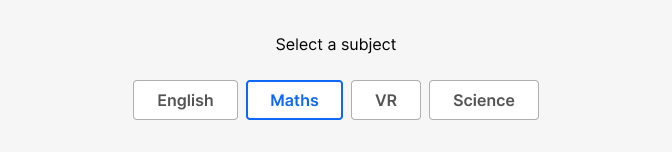
Label
Button labels should make it easy to understand what will happen if the button is pressed by explaining the action, element or view invoked by each button.
Use single words or succinct phrases to support quick scanning and interpretation. Use sentence case in the display of the button label text.

Icons
Icons may be used in combination with button group text labels to further reinforce the explanation of the setting or view associated with interacting with the button. Icons may also be used instead of text labels in button groups.

Do's and Don'ts
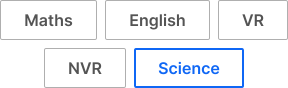
Do
Wrap button groups onto rows for “Spaced” variant.
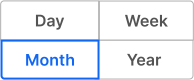
Don't
Wrap button groups onto rows for “Merged” variant. Instead display them vertically.

Do
Start with a capital letter and use sentence case, but don’t add full stops.
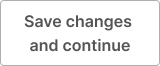
Avoid
Wrap button group label text onto 2 lines.

Do
Use multiple groups when you want similar actions to be grouped together and separated from others.

Don't
Mix icons and text.