
Email design
Overview
Email recipients often scan information and abandon emails that don't offer them value or simply appear to be too dense. Having great email design is so important to help capture the attention of, and engage, your email recipients.
Best practices
- Craft a strong subject line
- Write an attention-grabbing pre-header
- Be concise
- Keep your email on-brand
- Think about your layout
- Personalize every email
- Incorporate unique visual content
- Use a responsive design
- Optimize your email with calls-to-action (CTA)
- Add footer with email signature and “unsubscribe” button
Hubspot modules
Saved sections
When creating an email in Hubspot try to use some of the recent saved sections we’ve created. These already have styles applied to them and should make it easy to build out emails with simple layouts. They can be found on the ‘content’ menu on the left panel when you scroll down.
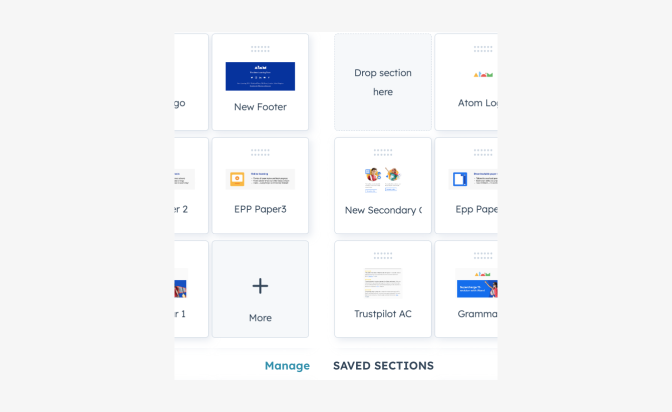
Main sections
Header
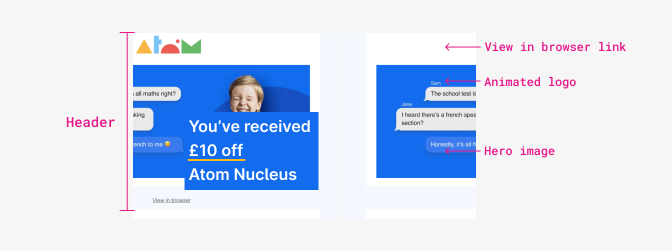
The header is the topmost section of the email and is often the first thing recipients see. Its primary role is to grab recipients attention and provide essential information about the email's purpose. It encompasses the following elements:
- "View in Browser" link: This link allows recipients to view the email's content in a web browser, which can be useful in case of rendering issues.
- Atom’s Logo: An animated logo representing Atom’s identity adds a dynamic and visually engaging touch to the header.
- Hero image with title: A prominent hero image, coupled with a compelling title, immediately captures recipients' attention and sets the tone for the email.
Body
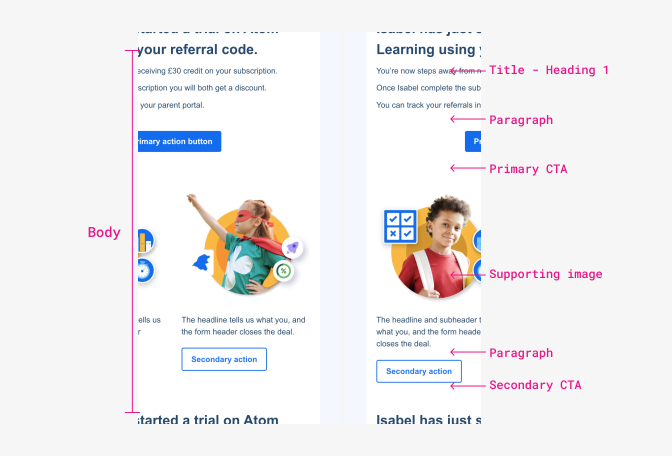
The content section constitutes the main body of the email, where the core message is conveyed along with accompanying visuals and prompts for action.
- Use a simple layout that is easy to follow and mobile-friendly.
- Make it easily scannable with keywords and proper spacing.
- Have a clear call-to-action for the reader to perform a desired action.
It typically consists of:
- Message: The central message is effectively communicated through concise and engaging text.
- Supporting Images: Relevant images or graphics are strategically placed to complement the message and enhance its visual appeal.
- Call to Action (CTA): CTAs in the content section guide recipients toward taking specific actions, such as clicking a link or button.
Footer
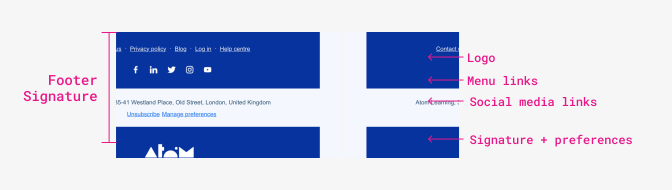
The footer is the bottom section of the email and provides important additional information and links. While it might be the last thing recipients see, it's still crucial for establishing trust and guiding recipients toward further engagement. Key elements of the email footer include:
- Logo: The logo is reiterated in the footer, maintaining consistent branding throughout the email.
- Menu links: Links to different sections or topics are provided, allowing recipients to navigate to relevant content.
- Social media links: Icons or links to social media profiles encourage recipients to connect on other platforms.
- Signature + Preferences: A signature containing contact information and any provided preferences ensures recipients can manage their subscription.
CTA buttons
Use CTA buttons to communicate actions users can take and to allow them to navigate easily.
The CTA should be short, relevant, and in most cases limited to two in an email.
Don’t use long CTAs, irrelevant to the message or action required, and repeated multiple times in a single email.
Placement
- Place important messages and CTAs “above the fold” to capture the attention of readers who won’t scroll to the bottom of your email.
- If you think that you’ll need more info to convey the message and get your readers to click, providing the explanation before the CTA and locating the CTA at the bottom (after they’ve been convinced) is best.
Types
We have two pre-styled CTA button types to drop into your email design. Try to avoid using any other style, if you need to change the styles, then contact a designer.

Use primary button as the main CTA.
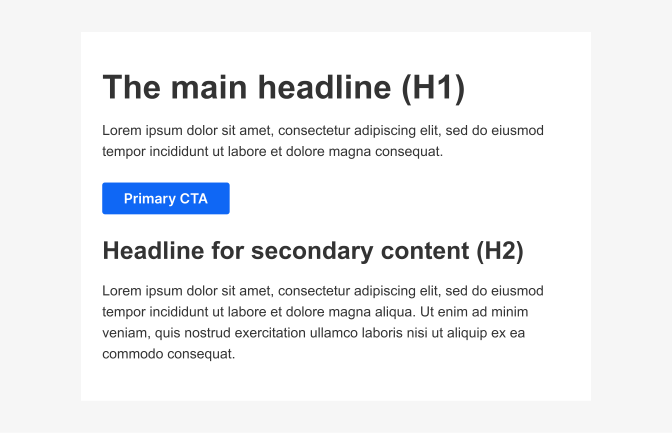
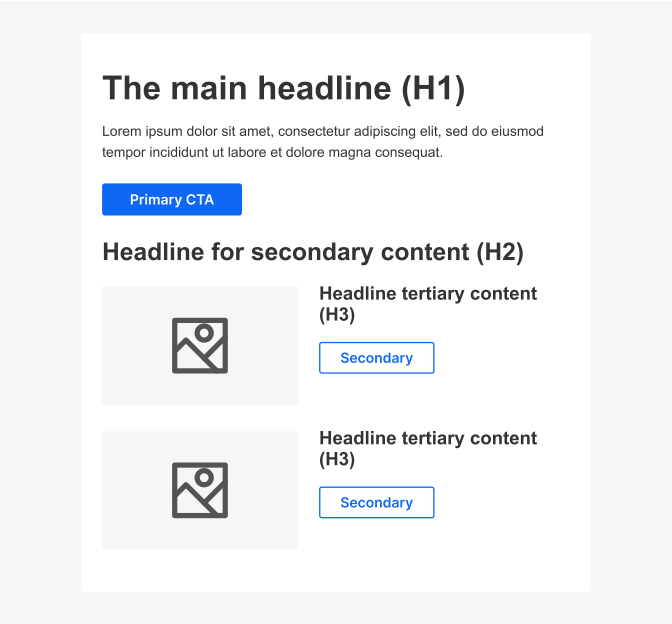
Use secondary button when you have a CTA that is not the primary action.
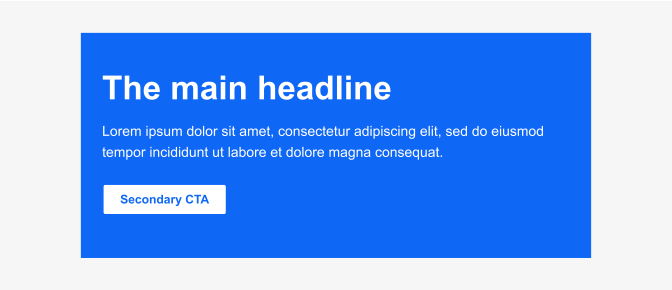
Avoid using dark backgrounds when possible, but if necessary, then use secondary CTA styles.
Color balance
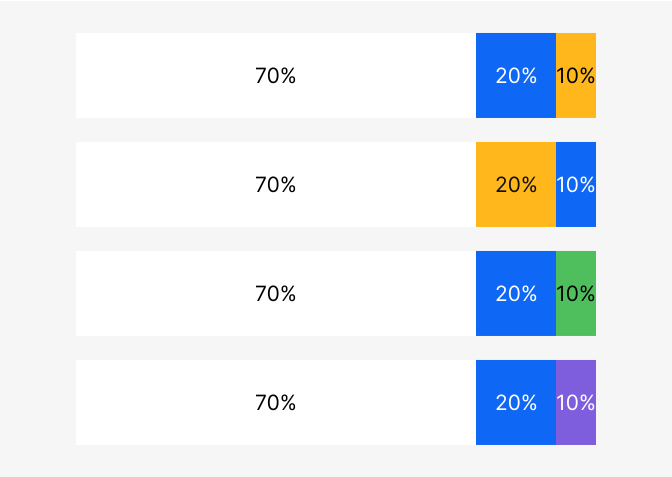
When creating email templates try to keep in mind the 70, 20, 10 rule. We want to keep backgrounds light to make the content easy to navigate and accessible and use colour for imagery, CTAs, and to highlight certain areas of the content.
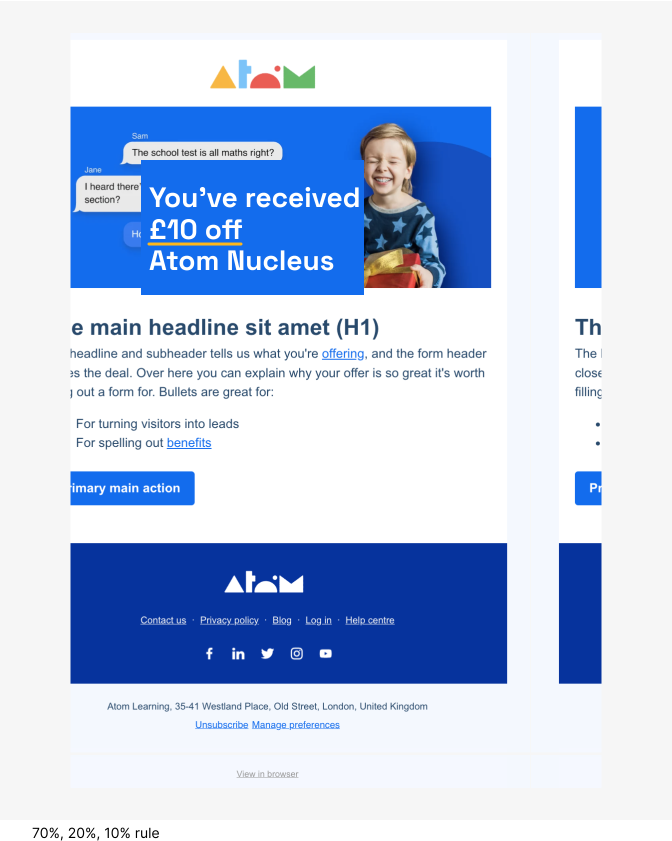
Do
Write using sentence case
Don't
distract the recipients from completing a CTA by including too many offers, graphics, etc.