
Overview
Inline messages consist of an inline feedback message in the form of simple text that inform the user of relevant information, revealed in context.
• Inline Messages are the best way to communicate alerts or help in context, without blocking any other part of the interface.
• They draw user’s attention to specific elements without disrupting the flow of the using the app.

When to use
Inline messages are useful when space is limited and they are less prominent and can use or not color and icons, all depending on the context and the message you are communicating.
Inline messages are always displayed inline, inside or next to another UI component and can use motion (ease in/out) to grab user’s attention when they appear and disappear.
There's the option to add a Tooltip for extended information. The user can click/hover the title of the alert to read more details of the message.
Examples
Empty state: when data is absent or unavailable.
E.g. It is a way of communicating that an item’s content cannot be shown because there is no data or results available and should be designed to prevent user confusion. It’s usually displayed together with a empty state illustration.

Information messages: may offer additional assistance or information to let the user know why we are asking for particular information.

Error: when the system cannot load content, or when a form field is problematic.
E.g. When text input isn’t accepted, an error message can display instructions on how to fix it. Error messages are displayed below the input line. It can include an icon with color and replace hint text until fixed.

Informational warning: when an item has an atypical status, e.g. duplicates.
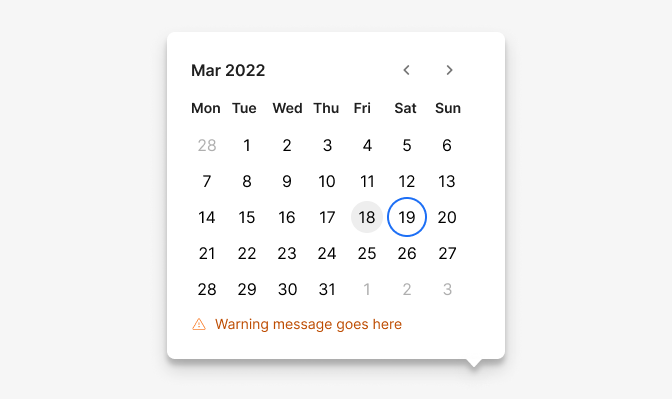
Success: make obvious to users that their interaction with the application was successful.

Transitional: when the system is processing an action, e.g. uploading, saving, loading, sending email, etc
Text will have an ellipsis at the end, showing a small delay and it will be combined with a loading component with animation.
Word should be related to the action as much as possible. For example “mapping” while loading a map.
When the effect of finishing the transition is subtle, provide confirmation success feedback.

Do’s and Don’ts

Do
Keep messages as short as possible.

Don't
Use when user action is required before continuing any further, then use Alert dialogs.

Do
Use when user action is required before continuing any further, then use Alert dialogs.

Don't
Use when user action is required before continuing any further, then use Alert dialogs.
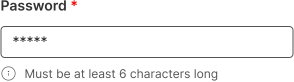
Do
Use inline messages within input fields as hint text to guide the user or to support error prevention.
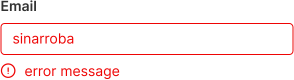
Do
Use to state the general problem with the user’s input, to alert tUse to state the general problem with the user’s input, to alert them to a required action, errors, etc.hem to a required action, errors, etc.