
Pagination
Overview
A component used whenever a user needs to navigate through sets of data that are too long to fit on one page.

When to use
- Use whenever a user needs to navigate through a list of items that is too long to fit on one page.
- Used in conjunction with other components such as a table or a list to allow users to easily navigate to different pages of the list.
- Used whenever a user needs to navigate through a large set of data that is too long to fit on one page. This can include lists of items, search results, or any other data that is divided into multiple pages.
- Used in conjunction with other components such as a list or a card grid, to allow users to easily navigate to different pages of the data.
Placement
- The pagination component should be placed at the bottom of the component with the data that it is associated with.
- It should be placed in a consistent location on the page to make it easy for users to find and use.
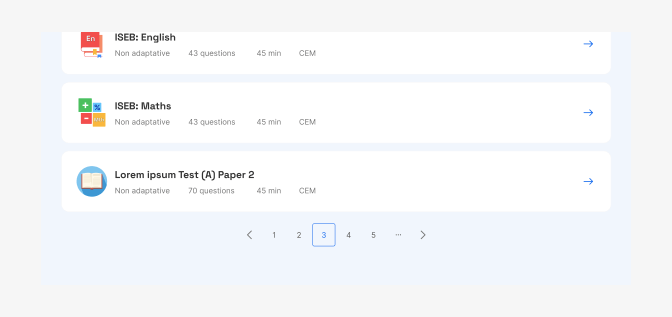
Pagination component allowing the user to navigate through a list of Mock test.
Truncation
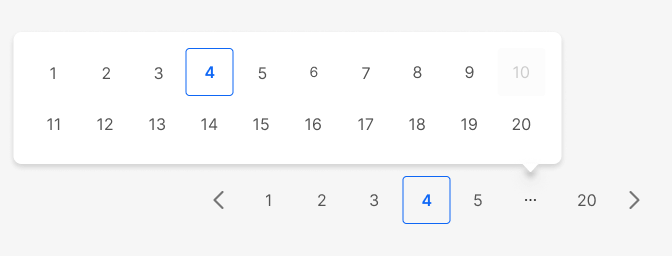
When a threshold of pages is reached, the list is truncated using an ellipsis button. This button triggers a popup containing allowing the user to navigate through the different pages.
Completed
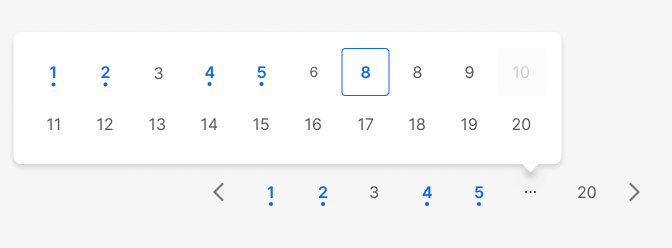
A special variant for Mock tests that display a color fill when the question has been answered:
Content
- The buttons in the pagination component should be labeled clearly with the page number or with "previous" or "next" to indicate the action that will occur when the button is clicked.
- The current page should be indicated clearly to the user.
Behaviors
- The pagination component should update to reflect the current page and the total number of pages in the data as the user navigates through it.
The buttons should have interaction states that indicate to the user that the buttons are interactive:
- default: default, hover, pressed, focus, disabled
- selected: default, hover, pressed, focus, disabled
To indicate completed mock tests:
- completed: default, hover, pressed, focus, disabled
- completed-selected: default, hover, pressed, focus, disabled:
The design system user (dev) should be able to choose the max amount of items shown in the navigation (including or excluding action buttons?)
What would be a good default? max 8 elements?
The number of items shown should respond according to the parent container available space.
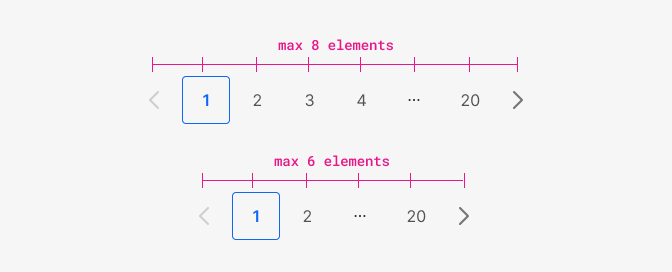
When you're on the first page the left chevron is disabled. When you're on the last page the right chevron is disabled.
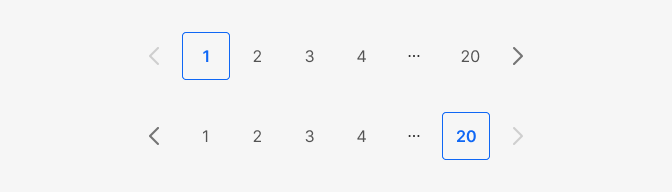
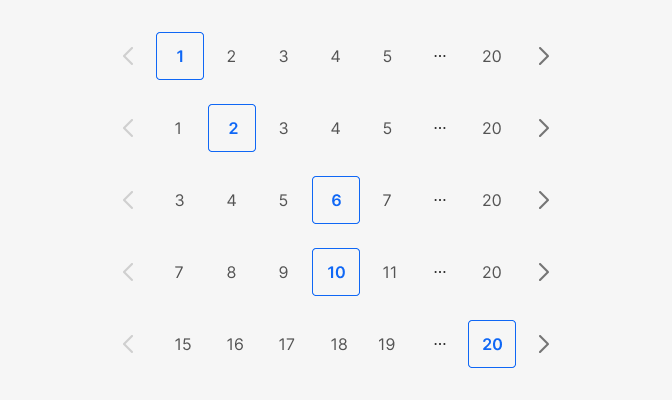
The selected page will be in the middle except for the pages that are at the start and end of the set (this is how it currently works).
The ellipsis button will always be the one before the last item (this is new).
Accessibility
- The pagination component should be screen-reader accessible.
- The buttons should be keyboard-navigable, allowing the user to navigate through the pages using the keyboard.
- The current page should be clearly indicated to users of assistive technology.
- The "previous" and "next" buttons should be labeled clearly and have a clear action associated with them.
- It is important to ensure that the pagination component is usable by users with different abilities and disabilities.
- Action icons inside the component must have accessible names for assistive technologies. For example: “Next”, “Previous”.
- Place the pager in a
<nav>element when you can. - If you do not use a
<nav>element, you need to addrole="navigation"to the markup. Note: this role is implied when you use the<nav>element so it is a bit redundant to use both at the same time. - The markup includes an
aria-label="pagination"to describe the type of navigation. - Add
aria-current="page"to the link that points to the current page. This will tell AT that the focused link is pointing to the current page. - Add
aria-disabled="true"to the link when the link is disabled.
Do's and Don'ts

Do
If there's only a small number of pages, show all the page buttons without an ellipsis.
Avoid
If there's only a small number of pages, show all the page buttons without an ellipsis.
Don't
If there's only a small number of pages, show all the page buttons without an ellipsis.